

How to Plan a Trip by Talking to Claude
ChicTravel now plugs straight into Claude Desktop, claude.ai, and Claude Code as an MCP connector. Here's the setup, a real planning session, and what we learned using it for our own trips.
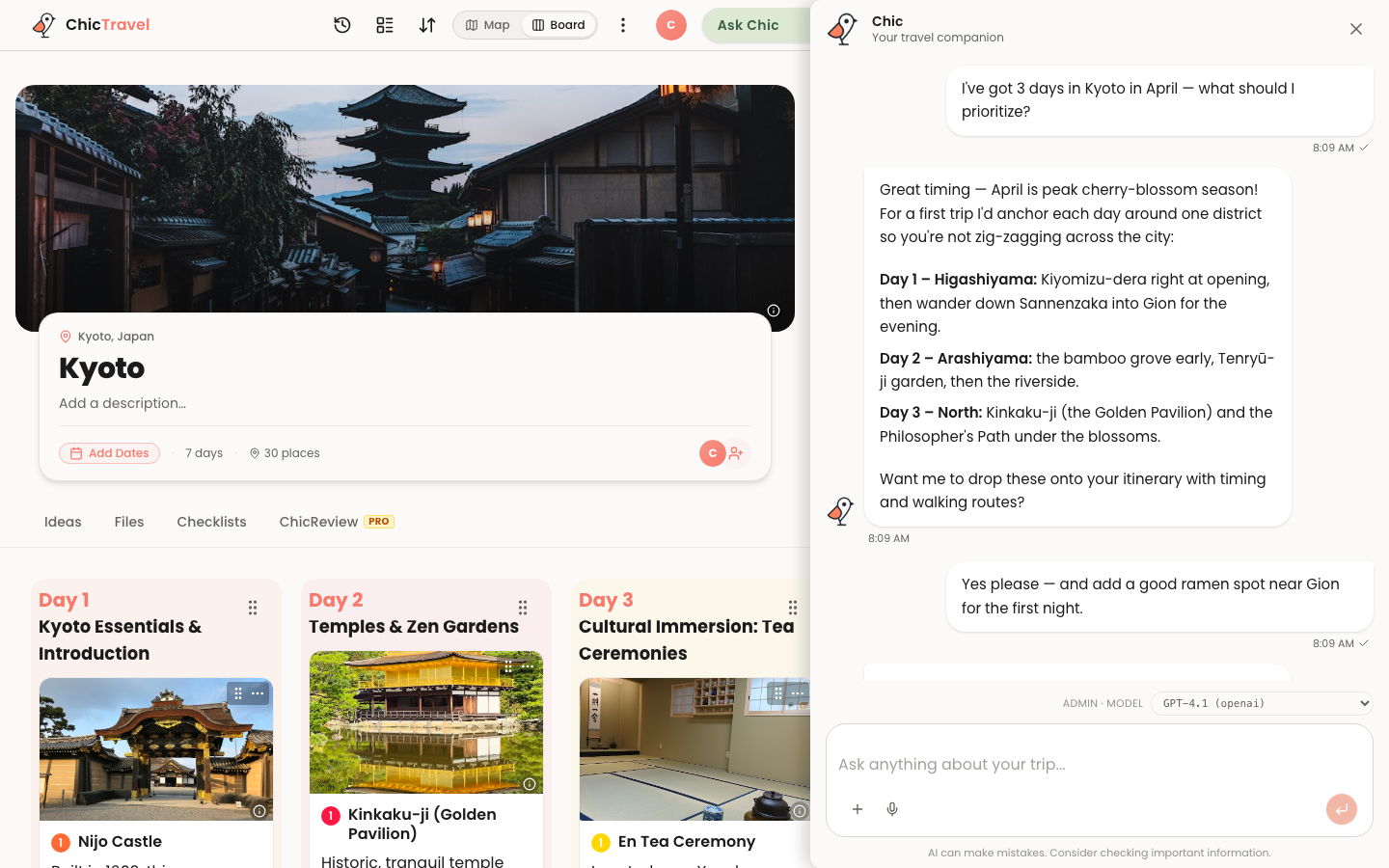
Here's a pattern we kept noticing in our own travel planning: the interesting part happens in an AI chat. You ask Claude where to eat in Lisbon, whether three days is enough for Kyoto, how to get from Naples to the Amalfi Coast without renting a car. By the end you have a genuinely good plan — trapped in a chat transcript. Then comes the unglamorous part: copying it, place by place, into something with a map and dates that your travel companions can actually open.
So we cut out the middle step. ChicTravel now runs an MCP server, which means you can add it to Claude as a connector. Once it's connected, "plan me five days in Kyoto" doesn't produce a wall of text — it produces a real trip in your ChicTravel account, with each day laid out and every place pinned on the map. Your partner can have it open on their phone and watch the places appear while you're still chatting.
What you need
Two things. A ChicTravel account — the free tier is fine, this isn't a Pro feature — and a Claude plan that supports custom connectors. The quick way to check the second one: open Claude's settings and look for a "Connectors" section. If it's there, you're in business. Claude Code, the terminal app, works too, and is honestly where we use it most.
Setup in Claude Desktop or claude.ai
In Claude, head to Settings → Connectors and pick "Add custom connector." When it asks for a URL, give it this one:
Claude will bounce you through ChicTravel's normal sign-in so the connector acts as your account — it can only see trips you own or collaborate on, and you can revoke it from the same settings screen whenever you like. The whole thing takes about a minute, most of which is typing your password.
https://chictravel.ai/api/mcpSetup in Claude Code
If you'd rather plan trips from the same terminal you work in, one command does it:
Then type /mcp inside Claude Code and pick ChicTravel to sign in. That's it. We've found this surprisingly pleasant — there's something about asking for a long weekend in Mexico City while a build runs that feels like getting away with something.
claude mcp add --transport http chictravel https://chictravel.ai/api/mcpA real session, start to finish
Here's roughly how a planning session went for one of us last month. It started with: "Plan me 4 days in Kyoto in late November — temples, food, one day trip, nothing before 9am." Claude created the trip, set up four days, and filled them with real places: Fushimi Inari early on day 1 (it negotiated — the shrine is the one thing worth breaking the 9am rule for, it argued), Nishiki Market for lunch, an afternoon in Gion.
Then the back-and-forth, which is where the connector earns its keep. "Day 2 looks overstuffed, push the philosopher's path to day 3." Done — and because Claude reads the actual itinerary before editing, it noticed day 3 was the Nara day trip and asked whether to swap that to day 2 instead. "Add my flight, KIX arrival at 3:40pm on the 24th." On the itinerary. "Set the budget to $1,500 and put the ryokan deposit in as $300." Logged.
The end result wasn't a transcript. It was a trip — the same kind you'd build by hand in ChicTravel, with the map, the day-by-day plan, and routes between stops — except the typing took ten minutes and most of it was opinions.
What it can and can't do
The connector exposes the same tools our in-app assistant Chic uses, so the coverage is broad: creating trips, adding and rearranging places (including moving things between days), notes, start and end times, flights, hotels, budgets and expenses, transport modes between stops, and reading any trip you have access to. Claude can even run a web search mid-plan to check opening hours.
What it won't do: touch trips that aren't yours, edit published guides, or delete a trip without explicitly confirming you asked. And it's worth saying — Claude is good at this, but it's still an AI making judgment calls about your vacation. Skim what it builds. The nice part is that skimming is easy, because everything lands in the app in real time where you can see it.
Three tips from a month of using it
Name your days. "Move the temple to day 3" works on the first try; "move the temple to later" sometimes means a clarifying question. Claude reads the itinerary before editing, so giving it a concrete target pays off.
Front-load your constraints. "Nothing before 9am, vegetarian-friendly dinners, we're traveling with a five-year-old" in the first message shapes every choice after it — much better than fixing each day individually afterward.
Let it read before it writes. Asking "what does my week in Sicily look like?" before requesting changes gets noticeably better edits, for the simple reason that Claude has the whole picture in front of it when it starts moving things.
Try it on your next trip
The full setup guide, the complete list of what Claude can do, and answers to the questions we keep getting are all on the connector page. Free account, one URL, about a minute of setup.
Set up the Claude connector →
